RoboHelp 2019 - Find and Replace
Find and Replace functionality can be accessed in a number of ways but they lead to two options as shown in the Edit menu.
- Find in Current File
- Find in All Files
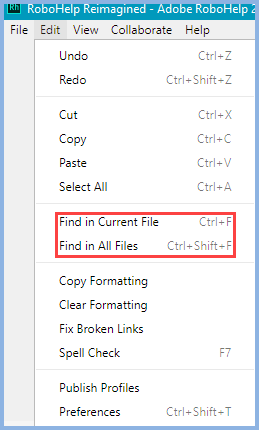
Find in Current File
With a topic, a CSS file, a masterpage or any text based file in the project, clicking Find in Current File will add this to the bottom of the page.

The settings icon allows you to deselect the default Ignore Case and/or select Whole Word only. With your Find or Find and Replace With string entered, you then just click the required button.
Find in All Files
Accessing Find in All Files
Find in All Files gives much more powerful options and it can be invoked in a number of ways.
- From the menu as shown.
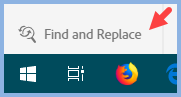
- By clicking the toolbar icon.

- By clicking the left toolbar option at the bottom of the screen.
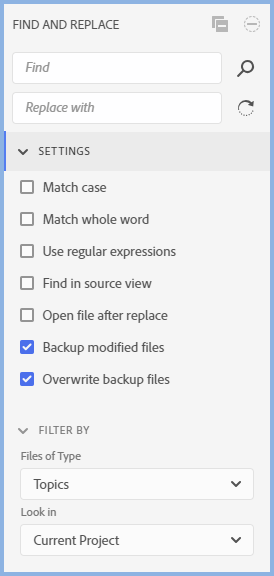
Setting up Find in All Files
Whichever way you open the Find and Replace in All Files functionality, it will open what you see below alongside the left toolbar. Select another toolbar option to close it when you have finished. Here the panel is shown with the Settings and Filter By panels expanded to show all the options.
|
|
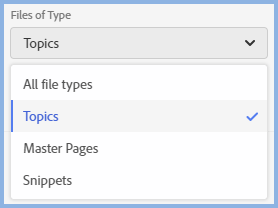
Find / Replace WithThe Find and Replace With fields can either be text or a regular expression if the Use Regular Expressions check box is selected. In both cases you can widen the fields by widening the whole panel. Backup OptionsIf selected Backup Modified Files will put a copy of the original file in your .rh folder. If selected Overwrite Backup Files will delete earlier versions of a specific file so that you only have the last backup. If not selected, then it will accumulate successive versions. Filter ByYou can choose the options shown. With Topics selected it can also be used in your CSS in Source view.
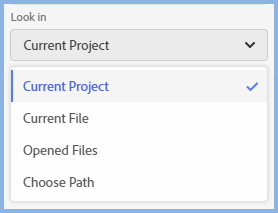
Look InBy default the whole project will be search but you can limit it. Choose Path will open a dialog to let you choose a folder within your project.
|
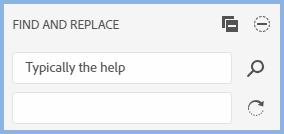
Search Results - Find and Replace in All Files
After entering the find and replace strings, click the magnifying glass search icon to see the results. Then you can choose the Replace All icon or alongside the results the same icon will allow you to replace individual instances.
The highlighting in Update 9 does not always correctly show the string found. However, the find and replace will remove the old string and replace it with the new string correctly.
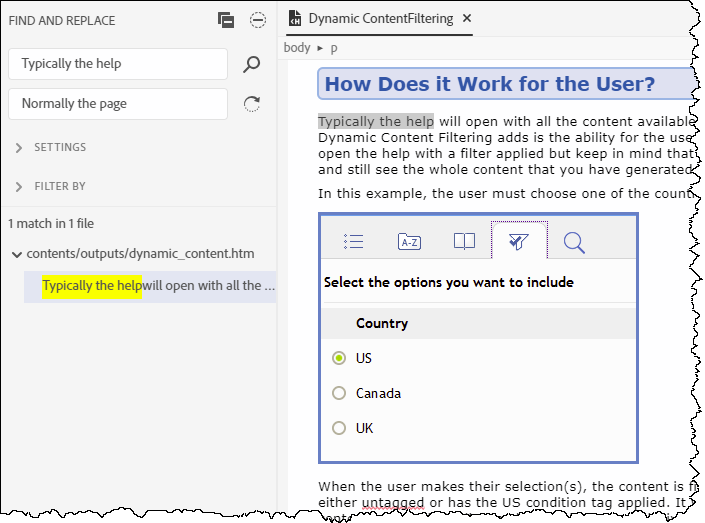
Search Results - Find Only in All Files
When you click the magnifying glass search icon, the results will be displayed and clicking any one of them will open the topic with the text highlighted.
Snippets and Variables
Whilst Find and Replace will find the searched string if it is part of a snippet or variable, it will not make the replace in the topic. You have to go to the snippet or variable and change it there.
Donations
If you find the information and tutorials on my site save you time figuring it out for yourself and help improve what you produce, please consider making a small donation.