RoboHelp 2019 - Upgrading
There are big changes to the code in Adobe RoboHelp as it is HTML5 and CSS3 based. Projects created in earlier versions will not be truly upgraded in the normal sense, instead your old project is left untouched and a copy is made on the fly. It is that copy that is upgraded. That means that you retain your project in its old format by way of a backup.
 You are nonetheless recommended to retain a backup copy in either source control and/or a zipped copy.
A zipped copy prevents you opening it accidentally and working on it before you realise it was the backup. Also you always have a clean backup that can be used to create a new clean copy time after time. Prefixing the zip file with the date is good practice. YYMMDD_MyProject.zip.
Microsoft Word Compatibility
You don't have to worry about Word compatibility any more as you don't need any version of Word for either importing or producing printed outputs!
Before You Proceed
Some of the features existing users are familiar with will be added in updates and some less used features will no longer be supported. Other features will change. Check this list before you go ahead. It will be updated from time to time.
|
Broken Links |
If you break any links there will not be an immediate warning as in the Classic versions of RoboHelp. You can either go the Edit menu and select Fix Broken Links or run the Broken Links report, which has tools to fix the broken links. |
|
Converting WebHelp to CHMs |
If you create WebHelp and then use the WebHelp to CHM script, that script is not supported in RoboHelp 2019. |
|
DUCC - Dynamic User Centric Content |
This was a WebHelp only feature in earlier versions and in it is now replaced by Dynamic Content Filtering, which was a Responsive HTML5 only feature before. |
|
Dynamic Content Filtering |
In RoboHelp 2019, Dynamic Content Filtering is controlled by condition tags alone. Some reworking will be required if you have used build expressions. I am hoping this change will be reviewed. |
|
External Content Search |
External Content Search will not be supported. |
|
Index |
Index keywords will be stored in topics rather than in a separate file. If you have more than one index in your project, they will be merged on upgrade. See The Index to find out how RoboHelp 2019 ensures only keywords relevant to the output are included. |
|
Multiscreen |
Responsive HTML5 outputs have proved much more popular and multiscreen outputs will not be continued. |
|
Output Content |
How you define what goes into your outputs is very different. It is important that you understand the difference before you generate an output. It is described in The Table of Contents. |
|
Project Reviews |
Project Review is not in the initial release, it will be added later with enhancements. To review your project you can create a document for review in PDF or Word supported format. |
|
Resource Manager |
Resource Manager has been replaced by Resource Linking. When you upgrade, any resources that you are using will be in your upgraded project and still be linked to the original file(s). |
|
Source Control |
Source control tools are being added progressively. See RoboHelp 2019 - Source Control for a link to what is currently supported. |
|
Tracking |
New tracking functionality will be added later. |
|
Scripting |
Scripting has changed. See RoboHelp 2019 - Scripts. |
|
WebHelp |
In the Output Presets it may appear that WebHelp has been dropped. It hasn't! The change is explained in RoboHelp 2019 - WebHelp Output. |
Upgrading
On the Starter Page click Upgrade Project or Click File > Upgrade RoboHelp Classic Project and browse to the main folder of your existing project. Select the XPJ file and click Open to display the New Project dialog.
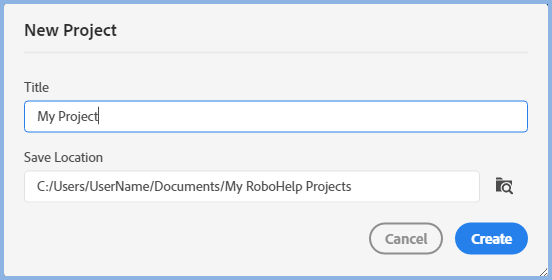
Complete as required and click Create.
When you upgrade, all the image, media and CSS files will be moved from their existing locations into the "assets" folder you see below. The folder structure of your project will be retained for folders containing such files.
For example, if you had all your images in a folder named Images and your media files in a folder named Media, in RoboHelp 2019 you will see Assets > Images and Assets > Media. Wherever they are pre-upgrade, the structure will be mirrored within Assets.
After the upgrade, it's up to you where you save the assets but using the Assets folder is recommended.
In most cases that will work fine no matter what Classic version you are upgrading from. If you do encounter any issues, try opening you project in RoboHelp 2019 Classic first and then upgrade that to the new RoboHelp 2019.
Upgrading Customised Skins
- When you upgrade any responsive skin that you applied in a Classic version of RoboHelp, any customisation you applied using the skin editor will be applied.
- Any customisation you applied other than through the skin editor will be lost on upgrade. What you can try is importing your responsive skin using the Import dialog. Make sure you click the Keep Using Older Layout of the Skin check box.
- Webhelp skins will not be upgraded. By default the Azure Blue responsive skin will be applied but you can change that to any of the supplied frameless or responsive skins after the upgrade.
The Upgrade
Your project will look like this. The folders will be the same as they were in the earlier version and there will be an assets folder. The assets folder is described in The Contents Panel.
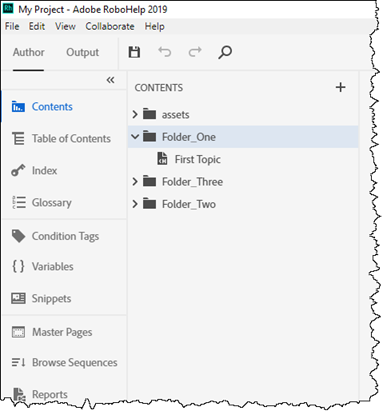
 RoboHelp 2019 lets you change folder and file names in File Explorer and it will be immediately reflected in RoboHelp. The change will show as soon as you put focus back on RoboHelp. Careful though, it can break links.
Donations
If you find the information and tutorials on my site save you time figuring it out for yourself and help improve what you produce, please consider making a small donation.