Broken Links
Broken Links Report
Broken links in a project can be checked at any time by going to Reports > Broken Links. The objects linked to are shown under Broken Links and the Used In column shows the topics the selected broken link appears in.
You can right click each item under Used In and fix the link or you can click where the link is used and fix it there.
Breaking Links As You Work
Users of Classic versions will know that Project Manager had a folder that highlighted if any links had been broken. It was possible to miss those until later so things are different now.
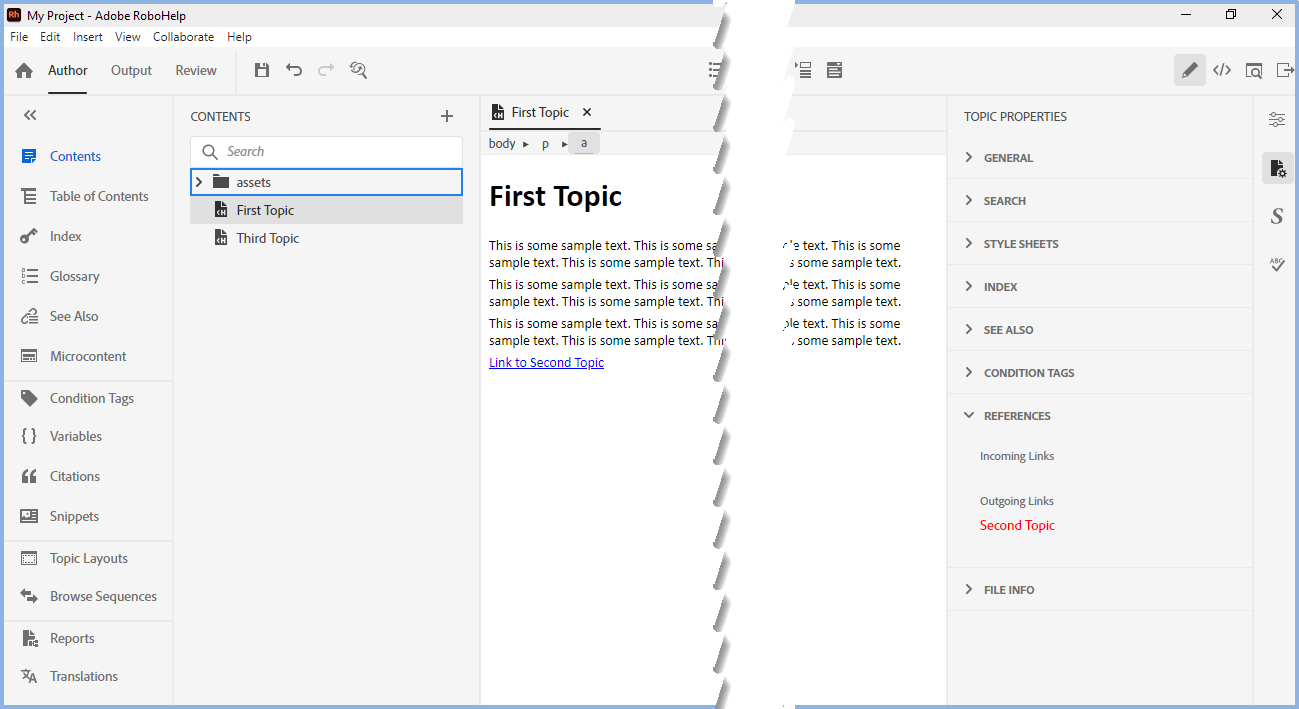
In this topic a link has been created to Second Topic and is shown under Properties > Topic > References > Outgoing Links. Note that the link colour is blue indicating the link is good.
In the Second Topic properties, there will be an Incoming Link shown.

Here you can see that Second Topic has been deleted from the Contents and the link in First Topic now shows in red.
Click on the red link to display a dialog that lets you change the link to another topic or create a new link.

Click Replace to select another topic as the target or Click Create New to create a new topic.
 Note the list of broken links will show all the broken links in the project. Click on a specific broken link to see where it is used.
Show References
Right click a topic in the Contents Panel to display the Context Menu. Select Show References to see this information in graphical format. Click the broken link to access the Fix Broken Links dialog shown above.
With Graph selected, you will see just the topic you were working on.
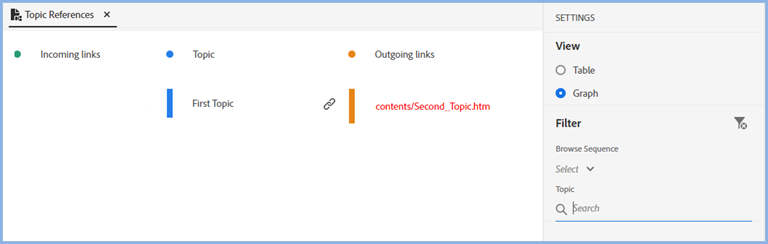
Change the View option to Table to see the information in Table format. You will also see all other broken links in the project.

Deleting Files
The workflow when you delete a file has also changed. The dialog to confirm the deletion will show all places where there will be a broken link if the file is deleted without any further action.
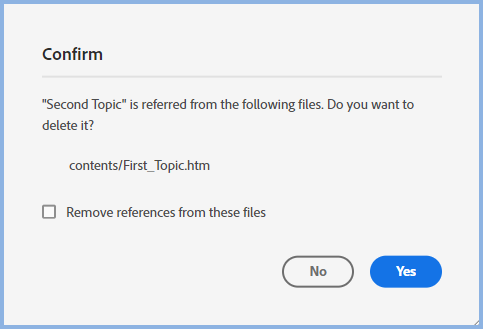
Your options are:-
- Select the checkbox and click Yes. This will remove the hyperlink from other topics but it would leave the text. That could leave some text such as "Click Here" without any underlying link.
- Click No and in Properties > Topic > Reference review the incoming links that will be broken.
- Click the links shown and the file shown will be opened in the background. You can then click No and change the link.
Donations
If you find the information and tutorials on my site save you time figuring it out for yourself and help improve what you produce, please consider making a small donation.