Check Printing Setup
PowerShift can print US or Canadian checks using blank check stock, partially pre-printed check stock, or fully pre-printed checks. The check print program can print all information (e.g., your company name, logo, financial institution, etc.) or you can select which of these components you want PowerShift to print.
Should you decide to use pre-printed check stock, you will need to verify that it is compatible with the PowerShift check print program.
Requirements
MICR
Check Stock
Envelopes
Test Printing
Requirements
You will need:
A copy of the your bank's check requirements which includes the MICR specification sheet per X9.100-161-2004 or X9.47-1998
A printer that can print checks; specifically a laser printer connected to PowerShift via QANTEL Print Connector.
MICR (magnetic ink character recognition)
The information that is printed at the bottom of a check (the "MICR line") typically includes a routing number, account number, and check number. This information is printed using an E-13B font, also known as a MICR font, and should be printed using a MICR toner (i.e., magnetic ink) cartridge.
The table below lists some vendors and their MICR fonts that conform to the E-13B standard. Some vendors supply multiple fonts and allow you to select the best font for your printer.
Vendor/Source |
Product Name |
Suggested True Type font |
GnuMICR |
GnuMICR - version 0.30 or later |
GnuMICR |
Morovia |
Morovia MICR E13B Fonts |
MRV MICR |
ID Automation |
MICR E13B Font Package |
IDAutomationMICR |
The required MICR font must be installed on the computer running QANTEL Print Connector; when you set up the Payment Method Batch, you will need to specify the installed MICR font.
Check Stock
Checks are printed on commonly available check stock with the following specifications:
Paper size: 8.5 X 11" (24lb)
Minimum of 9 security features
Bottom check (3.5 X 8.5")
Checks can be printed with one or two vouchers:
Single voucher uses a perforation at 7.5" from top
Double voucher uses perforations at 4" and 7.5" from top
US Check Stock
Examples
of US check stock that is compatible with the PowerShift check print program
and meet the requirements of Check 21. The list includes stock for one-
and two-voucher checks:
Vendor/Brand |
Item/Model Number |
VersaCheck |
Form #1002 (Business Voucher) |
Printech |
801B |
Magacheck |
MC352
GR |
Deluxe |
80503 |
Advantage Laser Products |
CP506 |
PCS Business Forms |
LB833 |
Printerm |
801B Security Checks (SKU 31801B) |
Canadian Check Stock
Examples
of Canadian check stock that is compatible with the PowerShift check print
program:
Vendor/Brand |
Item/Model Number |
Relyco |
MC352GR-CC |
Printech |
MC352BL-CC |
Envelopes
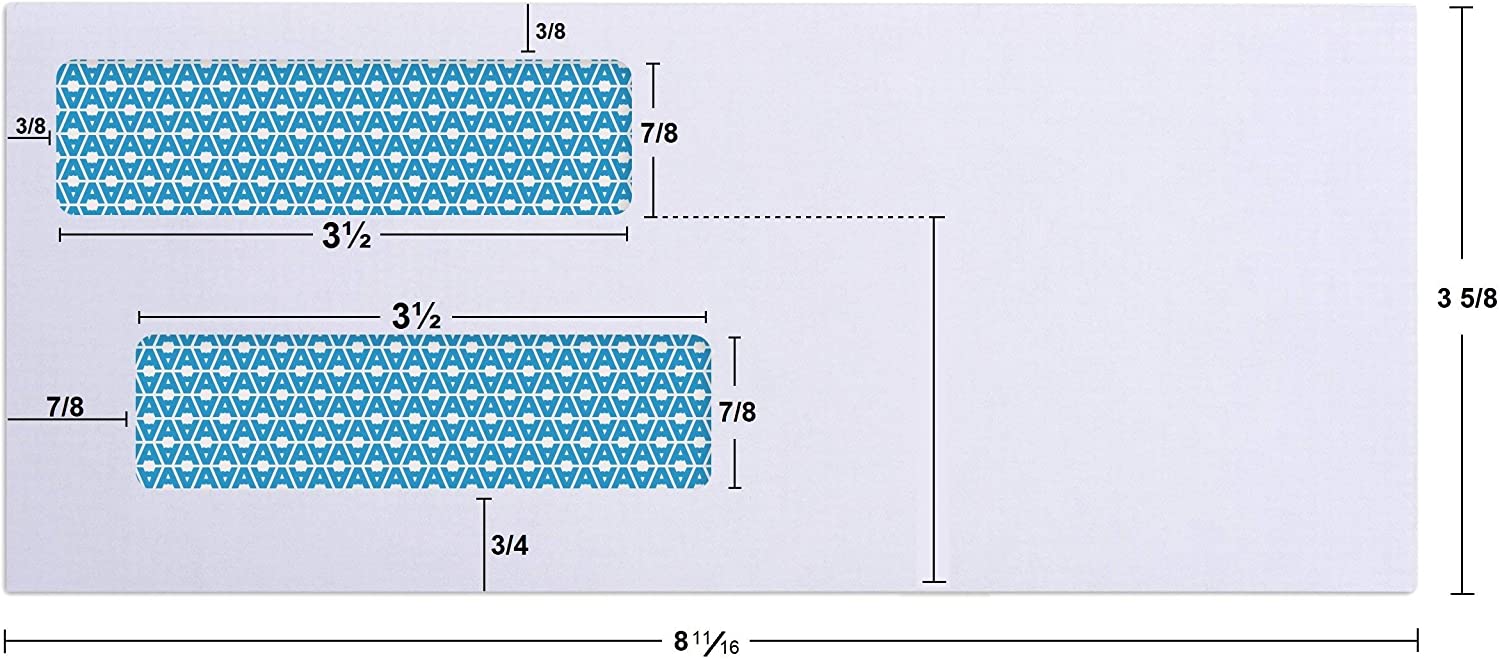
The branch address or logo and payee address are printed to display in double window #8-5/8 check envelopes. Measurements are in inches:
Test Printing
In Output Device Maintenance, make sure that P Portrait is selected for the Orientation field for the printer you are using.
In System Options Maintenance - Accounts Payable Options, enter NCPV as the name of the laser check print program in the AP check program name option. When you select Check Print from the menu or enter NCP, this program is run rather than the program that expects a pre-printed check.
Use Payment Method Batch Maintenance (TAPMB) to specify the information that is printed on checks.
For your test print, you should select a single invoice to pay and one check to print.
Run the Vendor Payments (NC) program, select the payment batch you set up, select an invoice to pay, and print the Cash Requirements Report.
Run the Check Print (NCP) program, select the payment batch you just processed, and print one check as a test.
If possible, use a MICR document template (sometimes called a check alignment guide or layout gauge) to ensure that the MICR line is positioned correctly on the check.
Before you begin issuing checks, you should send the sample check to your bank to confirm that it conforms with all current requirements.