Select Components of a Configured Product
When you enter a configured product in the Sales Order Maintenance (OE), One-Step Invoice Entry (RE), or EDI/Sales Quote Maintenance (QOE) program, the program may prompt you to select its components. See Background for more information.
The order of the prompts depends on the bill of material set up in the Configured Product Maintenance (MBM) program.
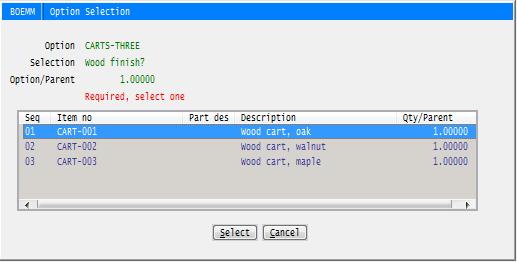
Select the option the customer wants and click Select.
OR
Click Special to add an item that is not listed. See Add a Special Component. The Special button displays only if the Special comp? field is selected in the Configured Product Maintenance (MBM) program.
OR
Click Cancel. However, if this component is required, the program displays the message A required option must be selected. CANCEL to cancel the entire selection.
Click Retry to select an option or click Cancel to exit without selecting any components and deleting the configured product line entry.
(Conditional) Select additional options.
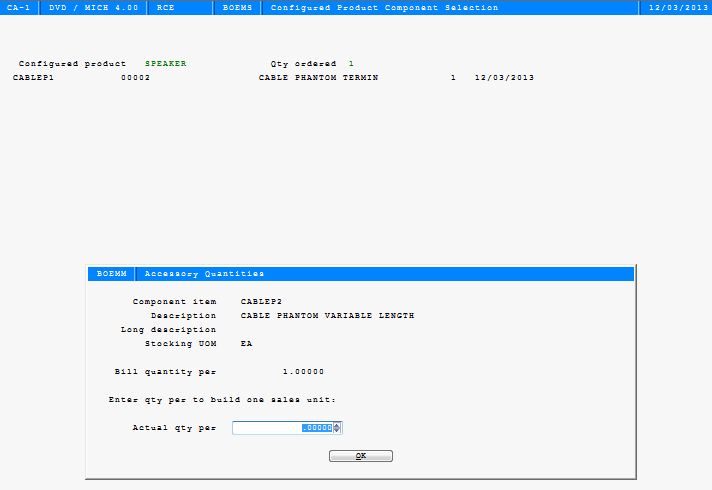
The Actual quantity is the quantity required to build one of the parent item. Enter the quantity per parent and click OK. An entry of zero is not allowed.
When you complete component selection, the program lists the components you selected and displays these fields:
Field Name |
Displays |
N |
Selected if a non-stock component |
Int comp |
c: An intermediate component: a prompt or pseudo that usually does not have a price |
Comp item no |
The number of a component item you selected |
Part des |
The identifier your company uses to distinguish multiple occurrences of a component in the same bill of material |
Seq |
Parent sequence number |
Qty open |
The quantity ordered If the Qty per bill field for this component in the Configured Product Maintenance (MBM) program is a fraction, the program rounds up to the next whole number. For example, if the quantity per is 5.5 and the quantity ordered is 11, the Qty open is 61; 5.5 x 11 = 60.5, rounded to 61. |
UOM |
The sales unit of measure for this item |
Selling price |
The unit price of this component |
Item type |
Component type; see Item Types |
Description |
The component description |
Choose the appropriate options:
To |
Do This |
Add another component |
Click Add. See Add a Component to a Configured Product. |
Delete the selected component |
Click Delete. See Delete |
Copy the selected component |
Click Copy. See Copy. |
Display or change the selected component |
Click Select. See Change Component Information for a Configured Product. |
Print the component list |
Click Print. See Print. |
Cancel this configured product |
Click Cancel. The program prompts Cancel the selection?. Enter CANCEL to delete this sales order line or leave blank to retain the line and its components as entered. |
Accept the displayed components |
Click OK. |
When you click OK, the program adds the components to the order.
Highlight the line with the configured product and click Select. or double click the line. The program displays the line detail.
Click Configured.
Enter data in these fields:
Field Name |
Type / Max Length |
Action / Description |
Obligate component sets? |
Optional |
Select if you ship the components separately (unassembled) and want them listed on shipping documents or leave blank if you do not. Note If you usually select this option, select O for the Conf prod release method Program option. See Set Order Entry Options. |
Create manufacturing order? |
Optional |
Select if you assemble the finished product from these components or leave blank if you do not. Note If you usually select this option, select M for the Conf prod release method Program option. See Set Order Entry Options. |
Quantity to process |
Required |
Accept the displayed quantity or enter a different quantity. |
Choose the appropriate options:
To |
Do This |
Accept the data and obligate this component set or create a manufacturing order |
Click OK. If you selected Create manufacturing order?, the program displays a message that either a manufacturing order or requisition has been created with its number. Click OK. |
Exit without obligating the components or creating a manufacturing order for this configured product |
Click Cancel. |